
Follow Google's Java coding style standards, use Intellij
Consistency Across Codebases: Adhering to a well-defined style guide ensures that all code within a project (or even across projects) follows the same conventions. This consistency makes it easier for developers to read, understand, and maintain code written by different authors.
Improved Readability: A standardized coding style enhances the readability of the code. When code looks the same regardless of who wrote it, developers can quickly grasp the structure and logic without being distracted by varying styles.
Ease of Collaboration: When multiple developers work on the same codebase, having a common style guide minimizes conflicts and misunderstandings. It streamlines the review process and facilitates smoother collaboration.
Reduced Cognitive Load: Developers spend less time thinking about how to format their code and more time focusing on solving problems. A common style guide provides clear rules, reducing the mental overhead of making formatting decisions.
Better Tooling Support: Many development tools, including linters and formatters, support Google's Java coding style. Using these tools helps automate code formatting, ensuring adherence to the style guide with minimal manual effort.
Why should we follow Google's Java coding style standards?

Because I desire and aspire to work in an environment like Google, but that seems far-fetched for someone with my modest skills. So, I might as well follow the standards they set. 😀
Google's Java Coding Standards: https://google.github.io/styleguide/javaguide.html
How to Install the Necessary Tools:
1. PLUGIN CHECKSTYLE
- You can find the plugin in:
Settings>Plugins>Marketplace–> enter“CheckStyle”

- Then install it and restart the IDE.
After setting up, you need to configure:
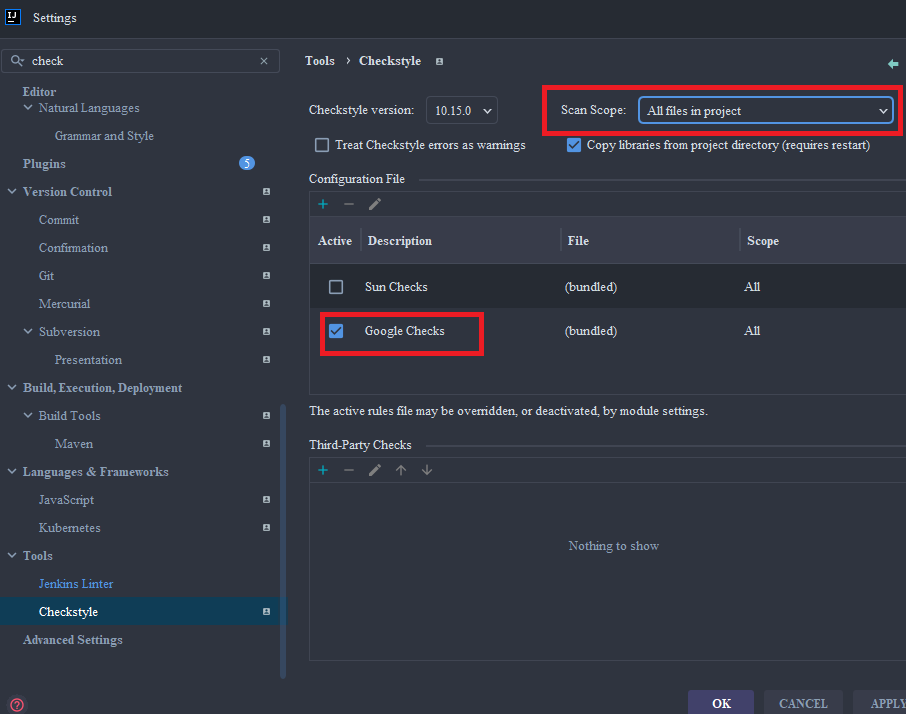
2. PLUGIN: GOOGLE JAVA FORMAT
- You can do the same as with the
Checkstyle plugin, but this time search for“google-java-format”:
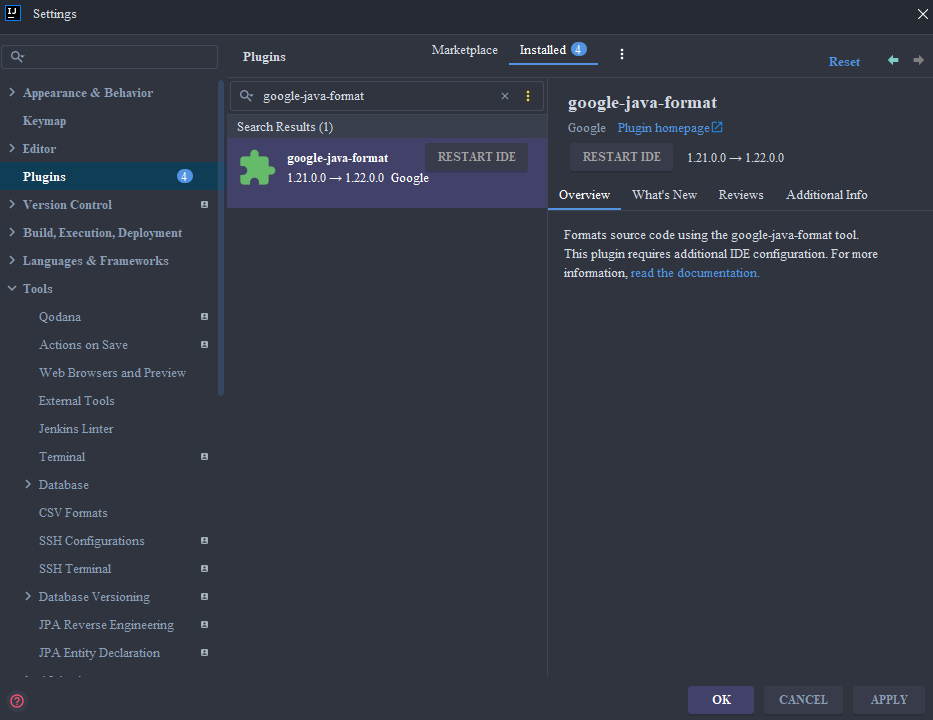
After setting up and restarting the IDE, you need to activate the plugin:
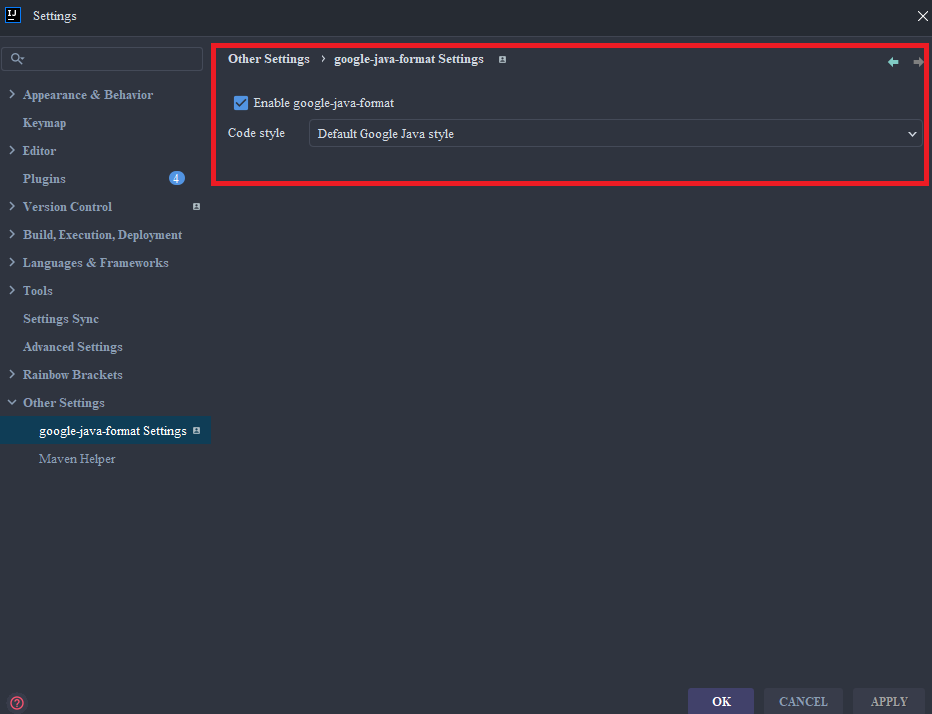
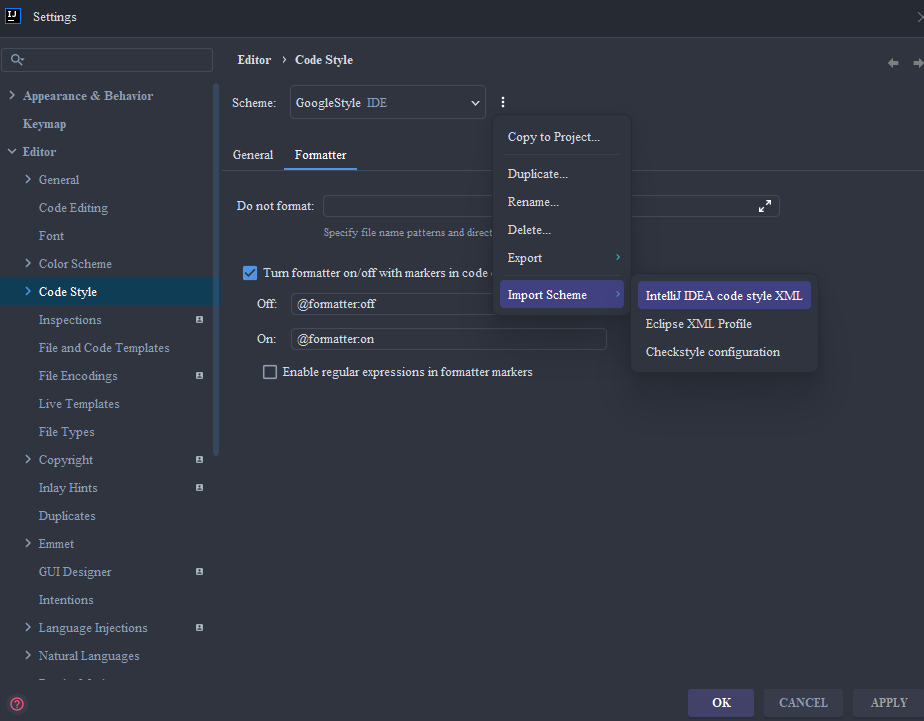
- Import the
intellij-java-google-style.xmlintoIntelliJ IDEA
Create file fsales-cs-formatter.xml in project

After import to IntelliJ:
How to use
Now, your IntelliJ IDEA is configured to follow Google's Java coding standards, and your code will be automatically formatted accordingly.
You can use the "Reformat Code" option or the shortcut Ctrl+Alt+L to format your code according to the imported Google Java style.
Warning
The options you provided are used to add exports for internal JDK packages, allowing unnamed modules to access these packages. This is necessary for some tools and libraries that need to interact with the internal APIs of the JDK, especially in newer Java versions where module boundaries are enforced more strictly. To set these options in IntelliJ IDEA, you need to add them to the VM options of your project or run configuration. Here’s how you can do it:
Adding VM Options to IntelliJ IDEA
Navigate to Help > Edit Custom VM Options. Once the file is opened in the editor, add the following lines to the file:
--add-exports=jdk.compiler/com.sun.tools.javac.api=ALL-UNNAMED
--add-exports=jdk.compiler/com.sun.tools.javac.code=ALL-UNNAMED
--add-exports=jdk.compiler/com.sun.tools.javac.file=ALL-UNNAMED
--add-exports=jdk.compiler/com.sun.tools.javac.parser=ALL-UNNAMED
--add-exports=jdk.compiler/com.sun.tools.javac.tree=ALL-UNNAMED
--add-exports=jdk.compiler/com.sun.tools.javac.util=ALL-UNNAMED
Restart IntelliJ IDEA for the changes to take effect.