
How to Install Docker: A Step-By-Step Guide
In this article, we will explain how to install Docker on a Ubuntu and a one-liner command to install the latest version of Docker.
Before installing docker on ubuntu, if you want to learn docker basics, head over to this article – What is docker
Docker supports almost all Unix and Linux distributions. Getting started with Docker is very easy. There is no complicated configuration for Docker.
Install Docker on Ubuntu
We will look at two methods to install Docker.
Install
Dockerfrom apt repositoryInstall
Dockerusing one line command.
Install Docker From apt Repository
Docker package is available in the native apt repository. The installation package available in the repository will not be the latest version. If you want to install the latest release of Docker, you need to install it from the source.
Follow the instructions given below to install docker from the apt repository.
- Set up
Docker'sapt repository.
# Add Docker's official GPG key:
sudo apt-get update
sudo apt-get install ca-certificates curl
sudo install -m 0755 -d /etc/apt/keyrings
sudo curl -fsSL https://download.docker.com/linux/ubuntu/gpg -o /etc/apt/keyrings/docker.asc
sudo chmod a+r /etc/apt/keyrings/docker.asc

# Add the repository to Apt sources:
echo \
  "deb [arch=$(dpkg --print-architecture) signed-by=/etc/apt/keyrings/docker.asc] https://download.docker.com/linux/ubuntu \
  $(. /etc/os-release && echo "$VERSION_CODENAME") stable" | \
  sudo tee /etc/apt/sources.list.d/docker.list > /dev/null
sudo apt-get update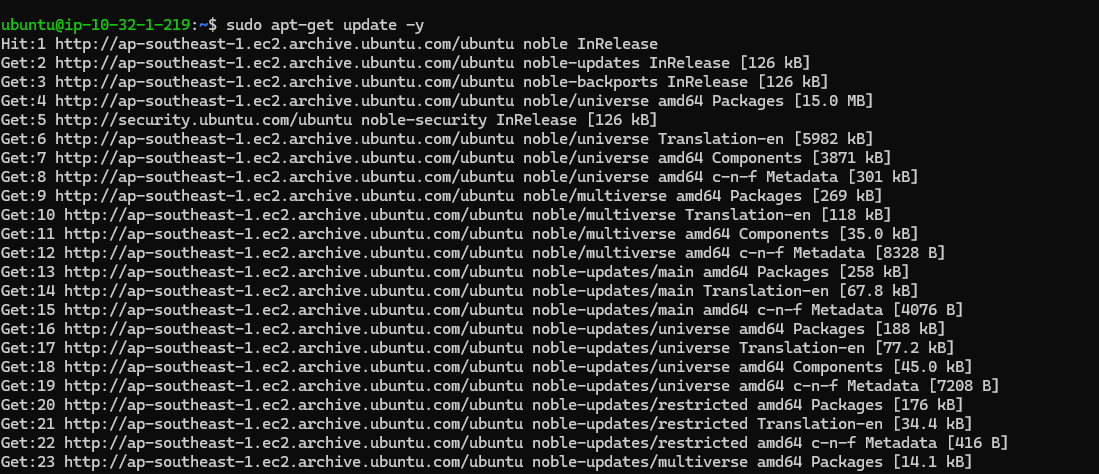
- Install the
Dockerpackages.
To install the latest version, run:
sudo apt-get install docker-ce docker-ce-cli containerd.io docker-buildx-plugin docker-compose-pluginTo install a specific version of Docker Engine, start by listing the available versions in the repository:
# List the available versions:
apt-cache madison docker-ce | awk '{ print $3 }'

5:27.0.3-1~ubuntu.24.04~noble
5:27.0.2-1~ubuntu.24.04~noble
...
Select the desired version and install:
VERSION_STRING=5:27.0.3-1~ubuntu.24.04~noble
sudo apt-get install docker-ce=$VERSION_STRING docker-ce-cli=$VERSION_STRING containerd.io docker-buildx-plugin docker-compose-plugin- Verify that the
Docker Engineinstallation is successful by running thehello-worldimage.
sudo docker run hello-worldThis command downloads a test image and runs it in a container. When the container runs, it prints a confirmation message and exits.
Tips
Receiving errors when trying to run without root? The docker user group exists but contains no users, which is why you’re required to use sudo to run Docker commands. Continue to Linux postinstall to allow non-privileged users to run Docker commands and for other optional configuration steps.
Installing the latest Docker release [One Liner]
If you are trying out Docker or using it for test purposes, you can use a one-liner command to install Docker.
To install the latest docker release just execute the following curl command.
curl -sSL https://get.docker.com/ | sudo shRun Docker Commands Without Sudo
If you try to run Docker without sudo as a normal user, you will get the following error.
Got permission denied while trying to connect to the Docker daemon socket at unix:///var/run/docker.sock:
To docker commands without using sudo, you need to add the system user to the Docker group.
Here is the command to add the current user to the docker group.
sudo usermod -aG docker $USER
newgrp docker
Exit the current terminal and log in again to use the docker commands without sudo.
Working with Docker on Ubuntu
To test the docker installation on Ubuntu, let’s go through some of the basic docker operations.
Pull a Docker Base Image
Now we have docker installed on the host. Let’s try to pull the latest ubuntu base image from the docker hub using the following docker command.
sudo docker pull ubuntu:latest
Verify the downloaded image using the following docker command. It will list all the downloaded and created images in the local repository.
sudo docker imagesTo check if Docker is enabled on boot, execute the following command.

sudo systemctl list-unit-files --type=service | grep docker.service
Run a Docker Container
Now we have the latest ubuntu docker image in our host. Let’s create an interactive container named “test” from the ubuntu image using the following command.
sudo docker run -i -t --name test ubuntu:latest
The above command will create an interactive container with a bash shell. You can try installing some packages in that container.
Note
You can also create a container without having an image in the local repository. When you execute the “docker run” command, docker will look for the base image in the local system respository. If it doesn’t find any, docker will automatically pull down the image from the docker hub.
Type “exit” to exit the container. When you exit, the container will stop. You can view all the stopped and running containers using the following command.
sudo docker ps -a
Uninstallaing Docker from Ubuntu
To uninstall Docker, execute the following command.
sudo apt-get purge docker-ce docker-ce-cli containerd.ioImportant Docker Configurations on Ubuntu
- To check all the important configurations of
Dockeron host, execute the following command.
docker info- All the containers are stored in the following location
/var/lib/docker/containers- If you want to add
custom DNS servers for Docker, create the following file.
vi /etc/docker/daemon.jsonAdd the DNS servers in the following format.
}
  "dns": ["8.8.8.8", "8.8.4.4"]
}
Enable Docker Remote API Access
By default, the docker client communicates with the docker daemon using the Unix socket docker.sock. If you want to accept connections from a remote docker client, you need to start the docker daemon on a specific port.
Follow the instructions given below to start the docker daemon on a particular port.
Step 1: Stop the docker service using the following command.
sudo service docker stopStep 2: Replace the following line in /lib/systemd/system/docker.service file to start the docker daemon on the port 5000 for client connections from all IP addresses. If you to establish a connection from a particular host, then you can mention that IP address instead of "0.0.0.0"
ExecStart=/usr/bin/dockerd -H tcp://0.0.0.0:5000 -H unix:///var/run/docker.sockStep 3: Reload and restart docker.
sudo systemctl daemon-reload
sudo service docker restart
Now you will be able to run docker commands from the host as well as from a remote docker client. To run the docker commands from a remote client, use the following syntax.
docker -H tcp://<ip-address-of-host-running-docker-daemon>:5000 <docker-command>Conclusion
In this post, we have learned to install docker on Ubuntu and we created a basic container from a docker Ubuntu image.
Also, we learned how to set up client connections for the docker daemon.