How to run Oracle Database in a Docker Container using Docker Compose
Oracle Container Registry (OCR) is a private container registry provided by Oracle Corporation that allows users to store, distribute, and manage container images.OCR is built on the Oracle Cloud Infrastructure and enables users to store, manage and distribute container images in a secure, reliable and scalable way. It is designed to work with the Oracle Cloud Infrastructure Container Engine for Kubernetes (OKE), Oracle Cloud Infrastructure Registry (OCIR), and other Oracle Cloud Infrastructure services.
Oracle Container Registry (OCR) is a fully-managed, enterprise-grade registry for storing and distributing container images on Oracle. Users can use OCR to store their own custom images, as well as pull down official images provided by Oracle. OCR supports both the Docker and OCI image formats and also provides features such as image scanning, image promotion and versioning, and image access control. Users can use the Oracle Cloud Infrastructure Console, Oracle Cloud Infrastructure CLI, or the Oracle Cloud Infrastructure SDK to interact with OCR.
Why to run Oracle database in a Docker Container?
There are several reasons why one might choose to run an Oracle database in a Docker container:
Portability:
Docker containerscan be easily moved between environments, making it easy to deploy the database in different environments such as development, testing, and production.Isolation: Running the database in a container can help to isolate it from the host system, reducing the risk of conflicts with other software running on the same machine.
Consistency: By packaging the database and its dependencies in a container, it ensures that the database will always run the same way, regardless of the environment in which it is deployed.
Scalability: Containers can be easily scaled up or down as needed, making it easy to handle changes in load.
Cost Savings:
Docker containerscan be run on-premises or in the cloud, allowing you to take advantage of cloud-based services while avoiding the costs of virtualization.
In this blog, you will see how you can use Docker to run Oracle Database in a Docker container
Getting Started
Pre-requisite
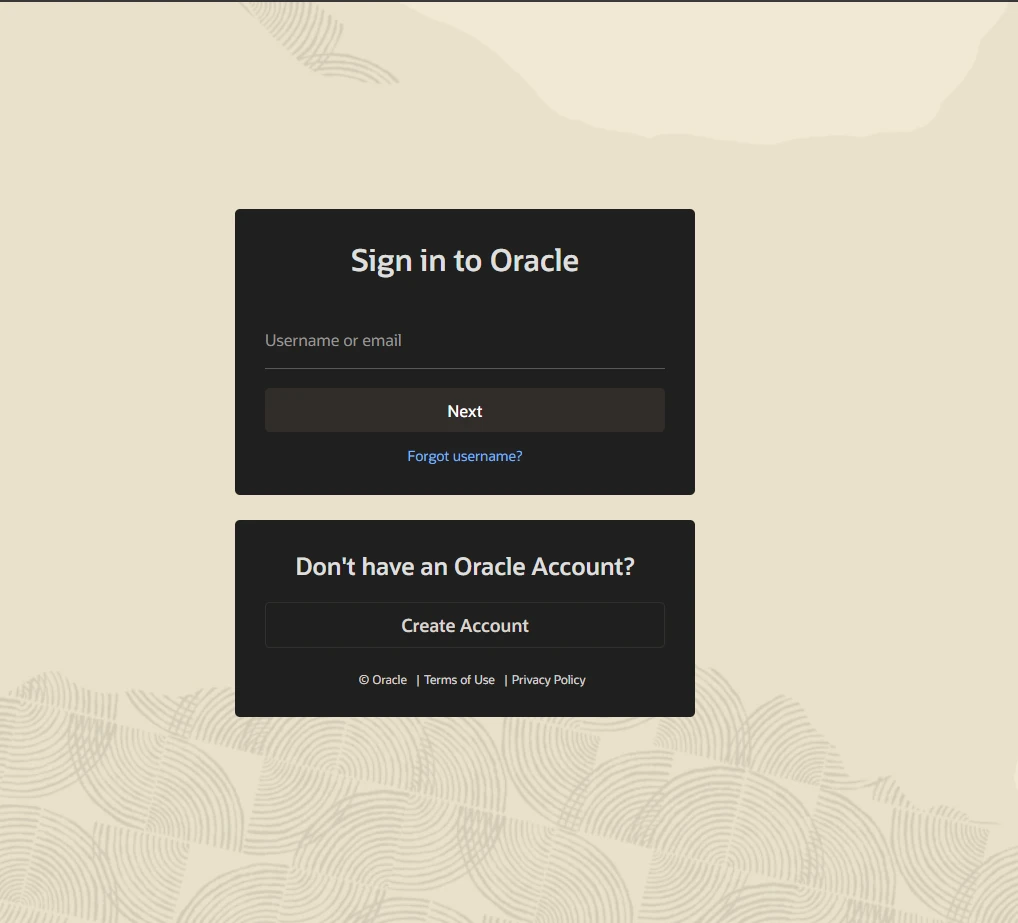
- Visit Container Registry Oracle and create your new account
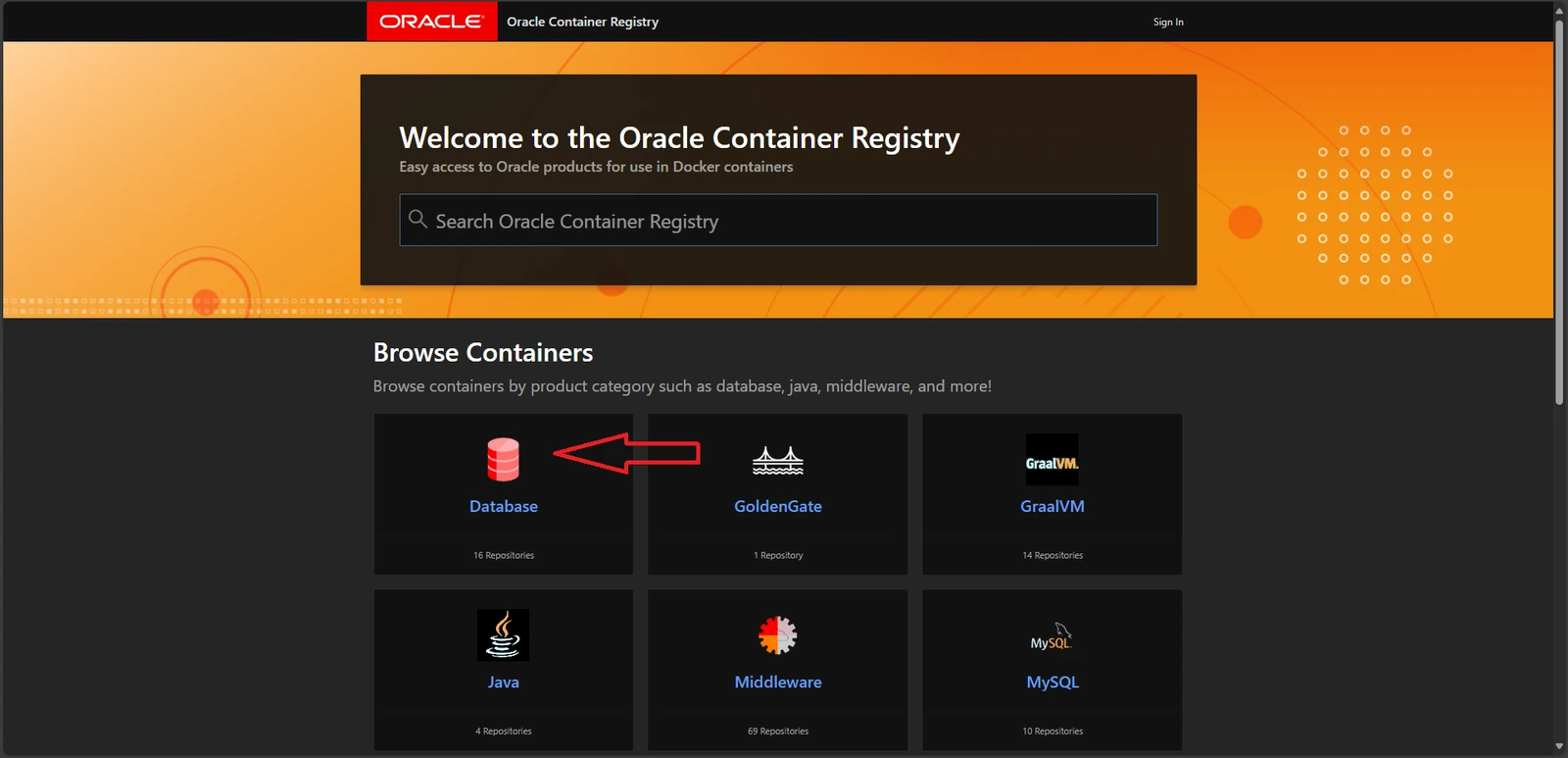
- Select
Enterprise
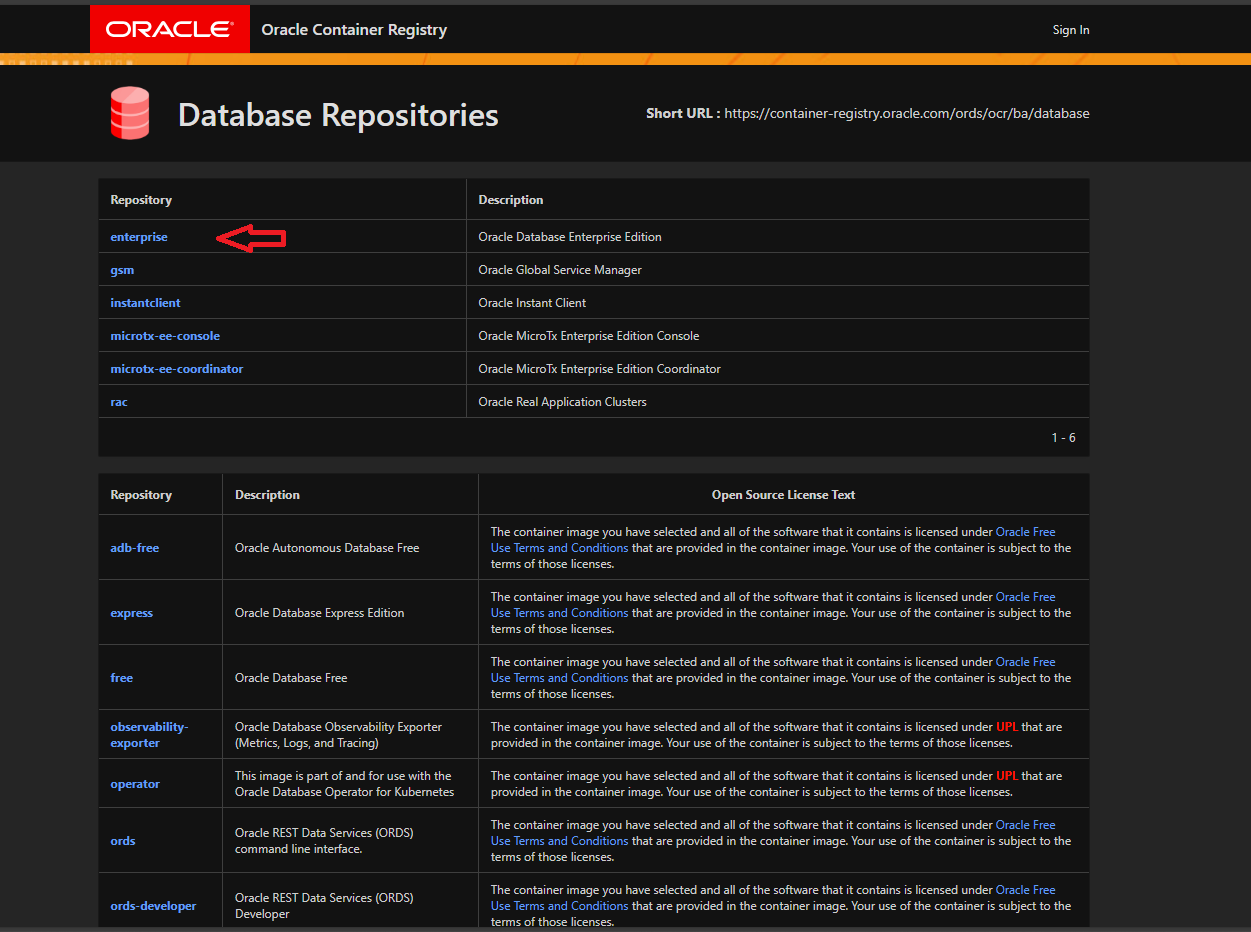
- Click
Sign In
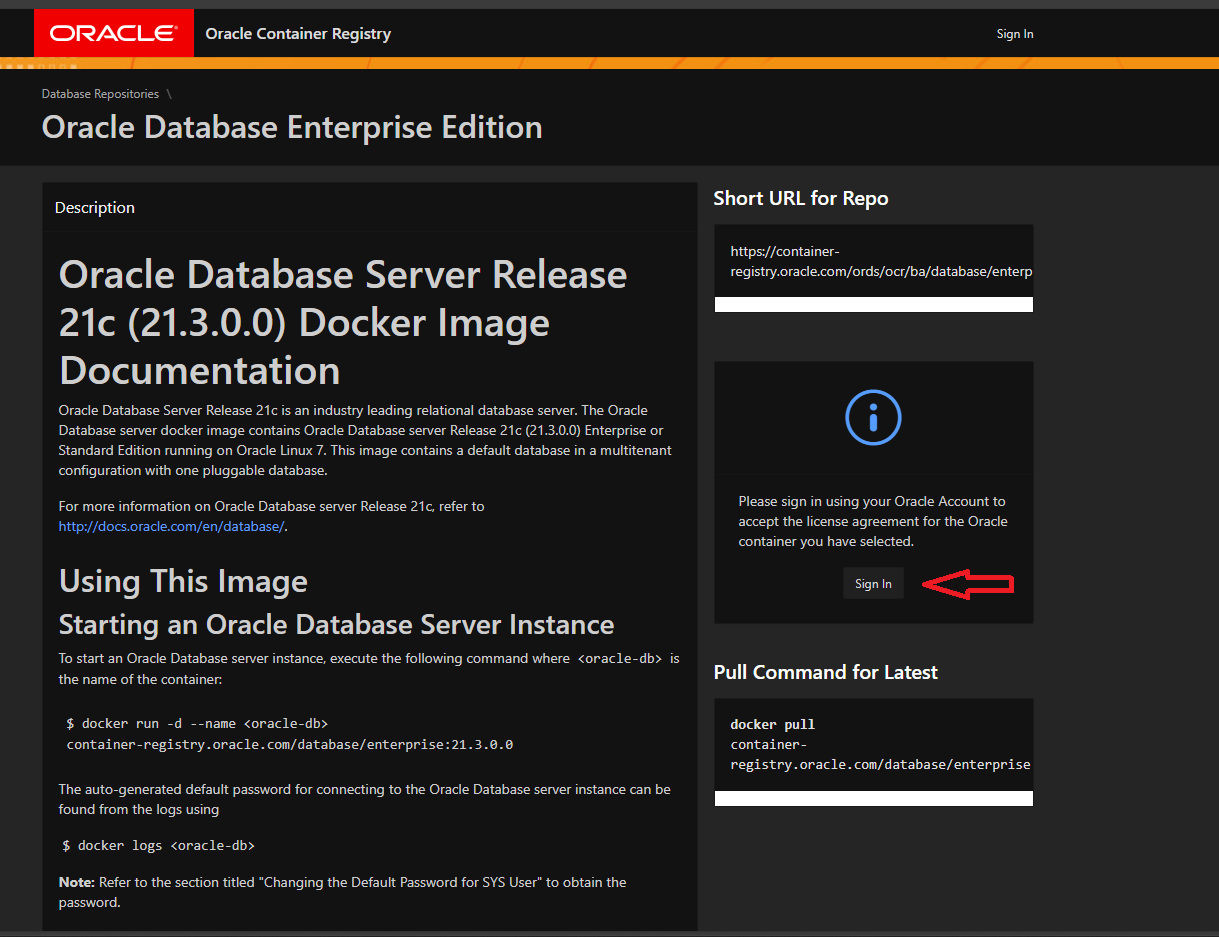
- Authenticate by entering your registered
Email IDandPassword
- After successful authentication, navigate to the Database section and select the desired
Oracle Databaseversion.
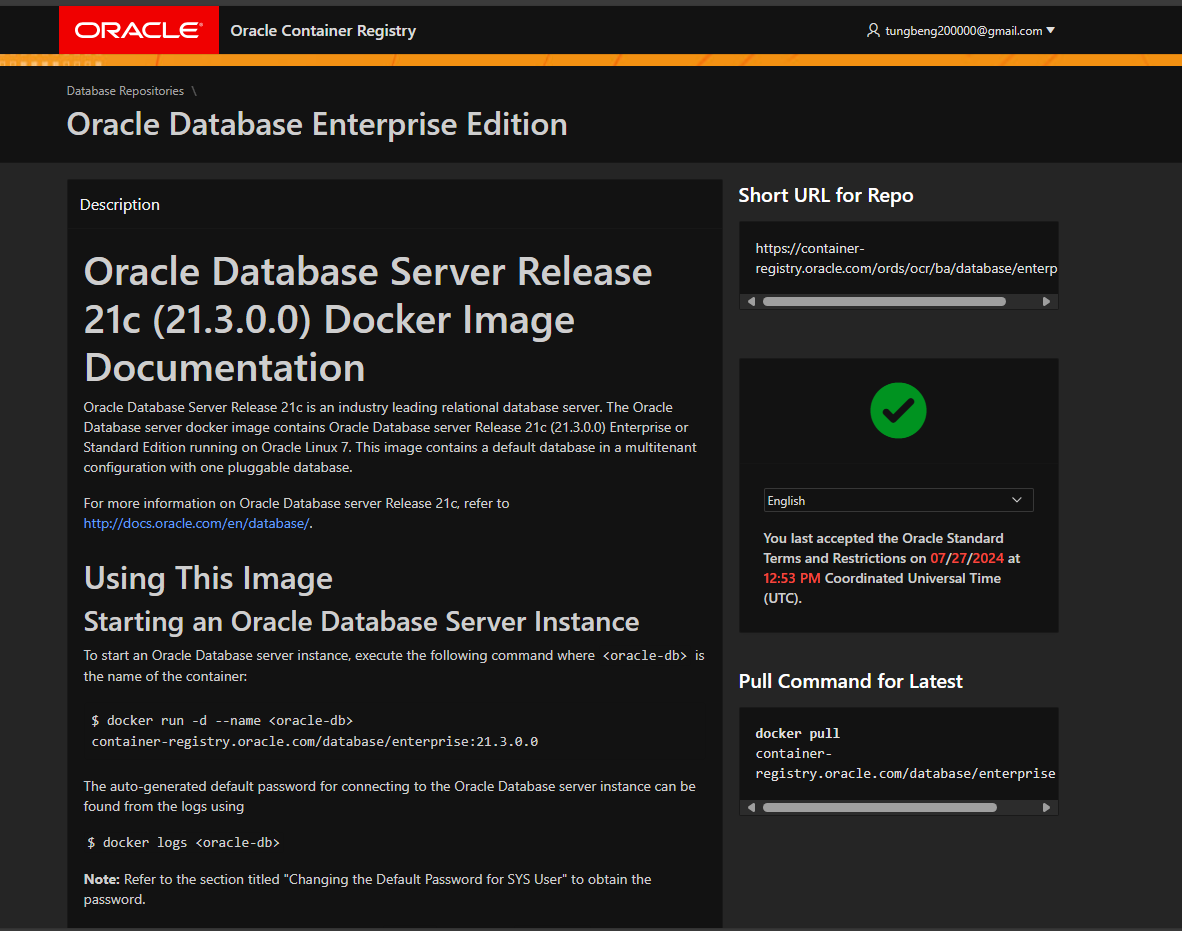
- Accept the license agreement to proceed with downloading the
Oracle DatabaseDocker image.
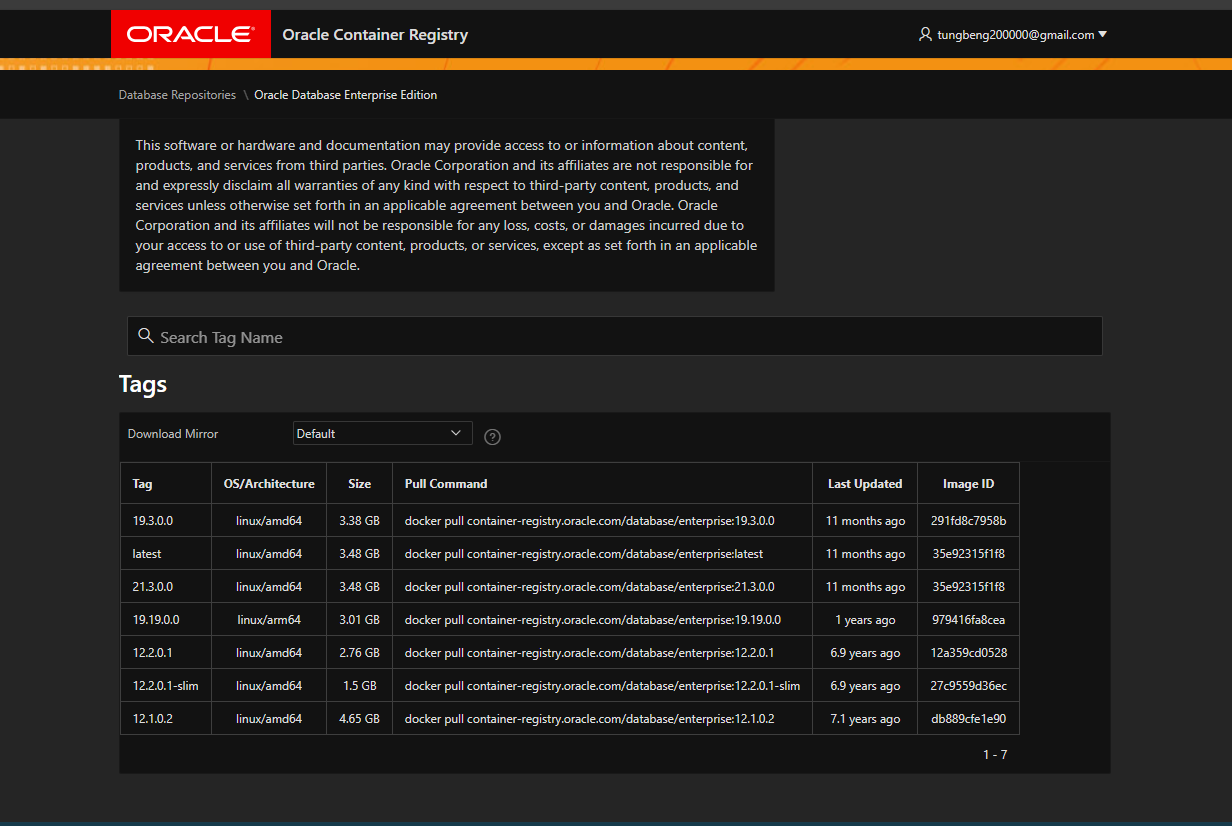
- Accept the License and test if the docker login is working fine or not.
docker login container-registry.oracle.com
Username: xxx
Password: xxx
Login Succeeded
Oracle Database can be run in a Docker container, using the official Oracle Database Docker image. To deploy an Oracle Database using Docker, you will need to:
Install
Dockeron your machine.Pull the
Oracle DatabaseDocker image using the command:
- Open a terminal on your local machine and execute the
Docker pullcommand to download theOracle Databaseimage. For example:
docker pull container-registry.oracle.com/database/enterprise:21.3.0.0- Verify the image is downloaded successfully by running:
docker imagesYou should see the Oracle Database image listed among the downloaded images.
- Create a new container using the command:
docker run -d --name oracle-db -p 1521:1521 container-registry.oracle.com/database/enterprise:21.3.0.0Once the container is up and running, you can connect to the Oracle Database using any SQL client, such as SQL*Plus, with the connection string hostname:1521/orclpdb1
The above command creates a new container with the name oracle-db and maps the host’s port 1521 to the container’s port 1521. The orclpdb1 is the default service name for the Oracle Database.
You can also customize the container by providing environment variables and volumes. For example, to set the SYS and SYSTEM password, you can use the following command
docker run -d --name oracle-db -p 1521:1521 -e ORACLE_PWD=<password> container-registry.oracle.com/database/enterprise:21.3.0.0Note
The above command will start the Oracle Database with default settings and configurations. It is recommended to refer to the official Oracle Database documentation and also to Oracle’s licensing policy > before deploying in production.
Using Docker Compose
Create a docker-compose.yml file to define the Oracle Database service. Here is an example:
version: '3.8'
services:
  oracle-db:
    image: container-registry.oracle.com/database/enterprise:21.3.0.0
    environment:
      - ORACLE_SID=ORCLCDB
      - ORACLE_PDB=ORCLPDB1
      - ORACLE_PWD=Oracle_123
    ports:
      - 1521:1521
    volumes:
      - oracle-data:/opt/oracle/oradata
      - oracle-backup:/opt/oracle/backup
    healthcheck:
      test: ["CMD", "sqlplus", "-L", "sys/Oracle_123@//localhost:1521/ORCLCDB as sysdba", "@healthcheck.sql"]
      interval: 30s
      timeout: 10s
      retries: 5

volumes:
  oracle-data:
  oracle-backup:
This docker-compose.yml file uses the official Oracle database image from the Oracle Container registry and sets several environment variables for the container, including the ORACLE_SID, ORACLE_PDB, and ORACLE_PWD.
It also maps port 1521 on the host to port 1521 in the container, so that the database can be accessed from outside of the container.
It also creates two volumes oracle-data and oracle-backup to store the data and backup files respectively.
It also has a health check to check for the availability of the DB.
Don’t forget to replace the values of ORACLE_PWD with your desired password. Also, you should adjust the volumes and ports to match your specific requirements. The above example uses SQLPlus to check the health of the database, you can customise it accordingly.
Conclusion
You have successfully set up and run an Oracle Database in a Docker container using Docker Compose. This setup allows for easy management, portability, and scalability of your Oracle Database instances. Remember to follow best practices for security and resource management in a production environment.